

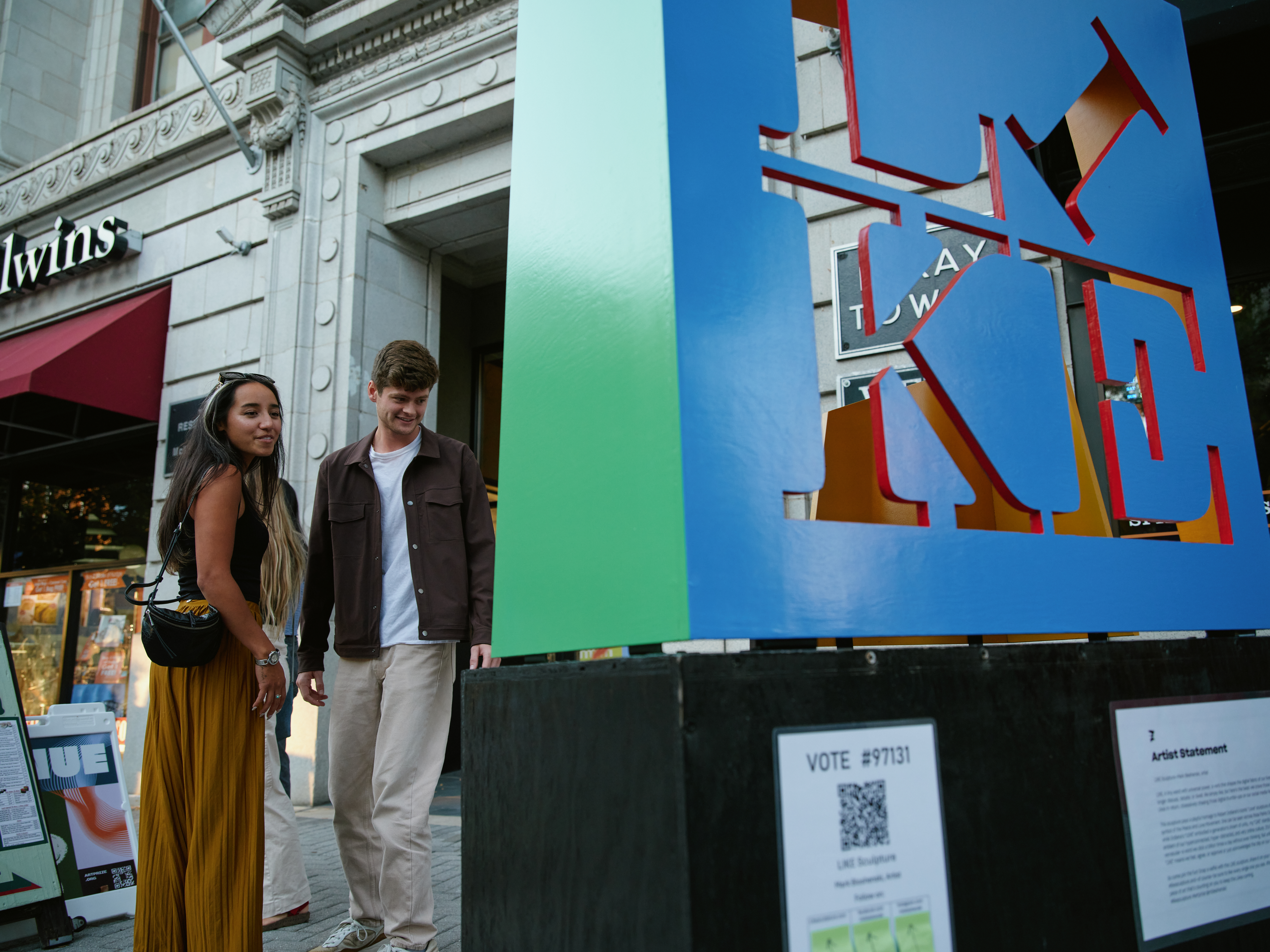
Vote For Art
Our Voting WebApp
VOTING STARTS FRIDAY, SEPTEMBER 18th at 12PM EST
Our voting webapp makes it easy for visitors to search for artist entries, explore venues, and vote for art.
Click the button below on your mobile device to get started.
Voting for Art 101
1 - Your first vote must be in the ArtPrize District - after that, you can vote from anywhere.
2- You can vote for each entry once per day, every day voting is open. You can vote for as many entries as you'd like each day.
3- Voting is open from Friday, Sept 18th, 12:00 PM EST until Friday, Oct 2nd, 10:00 PM EST.
4- There is only ONE ROUND of voting. During our HalfTime event, we will provide a snapshot of current vote leaders, but every entry is still in the running!
5- If you need technical help, check out the FAQs below, email support@artprize.org, or stop into the ArtPrize ClubHouse and we will do our best to assist.
Voting: How to
OVERVIEW
Check out the brief video for an overview of how to vote for art.
(Video not visible? Click here to watch.)
Voting is easy!
Step 1: Scan an entries' QR code w/ your mobile device📱or visit vote.artprize.org to get started.
Step 2: Login or create your ArtPrize voting account. (ALLOW location📌 access to verify you are casting your 1st vote in the ArtPrize boundaries.)
Step 3: Vote! ✅ Search for artist entries by: entry name, five digit vote code#, artist name or category or scan the QR code on the entry you wish to vote for.
Step 4:
Repeat. Vote for as many entries, once vote per entry, per day, as you'd like!
Our Voting WebApp Partners
ArtPrize worked with our friends at Flockx to help create our voting webapp. Their platform hosts the ArtPrize voting webapp, allowing visitors to search for artist entries and vote for art.
About Flockx:
Flockx provides a service that helps business owners create and use smart helpers (AI agents) without needing to know how to code Think of these smart agents as automated employees that can handle tasks like responding to customer messages, managing bookings, or coordinating inventory—all on their own, and instantly useable thanks to easy setup tools like drag‑and‑drop and one‑click deployment. These agents can talk to each other to solve complex tasks, and you can use them across platforms like your website, WhatsApp, Discord, or Telegram.
Fetch.ai, the parent company of Flockx, is based in Grand Rapids and is an AI Lab with a mission to democratize access to AI that helps people spend more time with their friends and community.
Voting: FAQs
How do I scan an entry?
Simply use your mobile devices camera to scan an ArtPrize entry QR code. After you scan your first entry and are prompted to login/register, you will remain logged into the webapp (providing you don't have certain settings enable that log you out- see below), and scanning the QR code will take you right to the entry you wish to vote for.
Logging In or Signing Up: Common Questions & Fixes
You can sign in with Google, Apple, or by creating a password with any email address (including Gmail or Apple email addresses).
Below are the most common situations and what to do.
1. “I’m using Google Sign-In but I don’t remember my Google password.”
Google Sign-In uses the same password you use for Gmail or YouTube—not a special password for this webapp.
If you can’t remember it, go to Google Account Recovery to reset your password.
Once you update your password with Google, come back here and tap Continue with Google again.
2. “It asks for a password when I try to use Google sign-in. "
You can skip Google entirely and choose Email Address/Password.
Enter any email address you own (even your Gmail) and create a new password just for this webapp.
3. I already registered/logged in, it keeps asking me to login again.
Certain settings on your phone/browser will force a logout:
iPhone (Safari/Chrome/Other browsers)
Private Browsing: Cookies are deleted when you close the tab.
Settings → Safari → Clear History and Website Data: Clears cookies/logins.
Settings → Safari → Advanced → Website Data → Remove All: Same effect.
Content blockers or privacy settings that block third-party cookies can also interfere.
Android (Chrome/Other browsers)
Incognito tabs: Never save cookies after closing.
Settings → Privacy → Clear browsing data on exit: If enabled, cookies disappear each time.
Battery or memory optimization rarely affects cookies, but “Clear cache/cookies” obviously will.
If you wish to stay logged in:
Avoid private/incognito windows.
-Don’t clear cookies/history if you want to stay signed in.
4. I tried to verify with an email address and password, but I don't see my verification email.
Check your spam or junk folder if you don't see your verification email. Please note, this email comes from Flockx - our voting webapp partner, so look for an email from them in order to verify your email for the voting app.
How do I open my camera to scan a QR Code?
Newer iPhones (iOS 11 and later – most devices from iPhone 8/X forward)
Open the Camera app from the Home screen, Control Center, or Lock screen.
Point the camera at the QR code so it’s centered in the viewfinder.
A banner will appear at the top of the screen—tap the banner to open the webapp in Safari.
If nothing appears:
Go to Settings ▸ Camera ▸ Scan QR Codes and make sure it’s ON.
Older iPhones (iOS 10 and earlier)The stock Camera app cannot scan QR codes.
Option 1: If the Wallet app recognizes the code, open Wallet and use its scanner.
Option 2 (best): Install a free QR code reader from the App Store (search “QR scanner”).
Open the app, allow camera access, and scan the code to follow the link.
Newer Androids (Android 10+ or most 2019+ phones)Open the Camera app.
Point at the QR code until a link preview pops up.
Tap the link to launch the webapp in your default browser.
If no pop-up appears, check Camera settings for Scan QR codes and enable it.
Samsung Galaxy S9 / S8 / Note 8/9These models support scanning directly with the Samsung Camera, even without Google Lens:
Open the Camera app.
Tap the gear ⚙️ Settings icon in the Camera screen.
Turn Scan QR codes ON (first time only).
Return to the viewfinder, aim at the code, and tap the on-screen link when it appears.
Older Androids (before built-in scanning)If the Camera app has no QR option:
Google Chrome (if installed):
Open Chrome.
Tap the three-dot ⋮ menu → Scan QR Code (or use the small QR icon in the address bar).
Scan and tap the link.
Google App (if present):
Open the Google app.
Tap the camera/Lens icon next to the search bar.
Scan and follow the link.
If neither is available, a free QR scanner from the Play Store is the fallback.
Tips for All DevicesMake sure Wi-Fi or mobile data is on.
Hold the phone steady and keep the QR code well lit.
Allow the browser to open the page if you see a permission prompt.
I forgot my password and I am not getting a reset email.
Make sure you check your spam folder. The email subject will say: Flockx: Password Reset Request.
If you still aren't getting your password reset email, please ask for help at the ArtPrize ClubHouse.
Why do you need my location?
We use your location for two main reasons:
Voting eligibility – Your first vote for any ArtPrize entry must be cast while you’re inside the official ArtPrize boundaries. After your first vote, you can vote from anywhere.
Better map experience – If you’re exploring the ArtPrize map in the voting webapp, location helps show where you are in relation to venues and entries so you can easily find art near you.
Your location is used only for these purposes and is not shared or sold.
However, if you do not wish to share your location and are in the ArtPrize boundaries, you will still be able to vote. Please see the note below, which explains how we verify valid votes and try to make the technology work to help you explore the art and support artists.
A Note about Voting and Location
As the voting rules state, the first vote for an entry (any entry) must be cast within the ArtPrize Boundaries. After that, voting is allowed from any location, for any entry. An individual user is able to to vote once per entry, per day.
Based upon feedback received from visitors, artists and other guests, we aim to make the voter experience as user-friendly as possible - meaning we strive to accommodate those with a wide-range of technological skills, ability and access. This is why we have chosen to remove the need for a user to set their location when voting. This is with the intent to avoid blocking people from voting if they have trouble enabling their location on their phone and are still within the ArtPrize boundaries.
Using backend geolocation checks, we are able to ensure vote validity and that users are following the voting rules. (Please note this data is anonymized, and does not allow continuous tracking of a user's location).
While technically people can cast their first vote outside of the ArtPrize boundaries, those votes ARE NOT COUNTED, as they are not compliant with the voting rules for ArtPrize. They will be filtered out of final vote counts. Only valid votes will be recognized.
Need more help?
Reach out to support@artprize.org or find a friendly ArtPrize volunteer or staff member during the event. We're here to help!